
Support: Tips for Using BizInt Smart Charts
Using Reference Rows™ 1.0
BizInt Smart Charts Reference Rows™ is a utility you use in conjunction with BizInt Smart Charts for Patents or BizInt Smart Charts for Drug Pipelines to create a "reference row"— a single row representing related records from different databases.
NOTE: Before you open your .chp or .cht file in Reference Rows
The starting point for Reference Rows is your chart file created in BizInt Smart Charts for Drug Pipelines or BizInt Smart Charts for Patents.
Because many customization features are not present in Reference Rows Version 1.0, we strongly recommend you do the following before opening your .cht or .chp file in Reference Rows:
- Generate the grouping column (e.g., Common Drug Name, Common Patent Family, or Common Trial ID column) and review and hide any rows that you do not want in your report. You cannot hide rows in Reference Rows.
- Add any user columns before you open the chart in Reference Rows. You can type and edit text in Reference Rows, but you cannot add rows or columns.
- Apply Chart Templates before opening the chart in Reference Rows. You can change the visible columns in Reference Rows, but you cannot apply and create Chart Templates.
- Updating cannot be done in Reference Rows.
BizInt Smart Charts Reference Rows - Key Steps
Creating your Reference Rows report
- Open your .cht or .chp file in BizInt Smart Charts Reference Rows to launch the Create Reference Rows wizard.
- In step 1, you can generate or regenerate the Grouping column (e.g., Common Patent Family, Common Drug Name, or Common Trial ID column.)
- In step 2, review the Database Ranking.
- In step 3, create Column Rules.
- In step 2 or 3, you can apply or save a Rules Template.
- Click "Finish" and the Reference Rows Review Chart window will appear.
Customizing your Reference Rows report
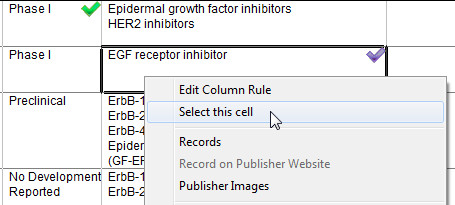
- To override the rules, select the cell you prefer, hold down the right mouse button, and choose "Select this cell" from the menu.
- Sort the chart by clicking the Sort icon on the toolbar. Your report will be sorted based on the selected value for each reference row.
- You can save the review chart and open it again in the Reference Rows software with all of your rules, edits, and selections saved.
Exporting your Reference Rows report
- Use File | Export to view and distribute your Reference Rows report.
- Choose your desired export format and export options.
BizInt Smart Charts Reference Rows - Features
Reference Rows Grouping Column
Reference rows are based on the grouping column (e.g., Common Drug Name, Common Patent Family, or Common Trial ID column) – all rows with the same values in this column will be summarized by a single reference row. We recommend that you review the results of these tools before opening your chart in Reference Rows.
Database Ranking
The Database Ranking determines how data is selected for the reference row. By default, databases are ranked in the order that you specified when you created your combined chart.
You can specify a new database ranking in step 2 of the Create Reference Rows wizard. You can also change the database ranking using the Reference Rows | Database Ranking command.
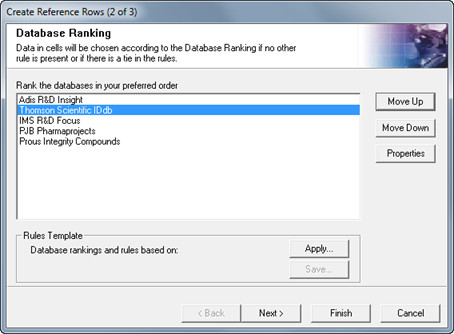
To change the database ranking, click on a database and press Move Up or Move Down. Click the "Properties" button to change the database label in the exported Reference Row report.
When you apply the new ranking, the rows in the review chart change order to reflect the new ranking.
Column Rules
You can override the database ranking by specifying rules for each column. Step 3 of the Create Reference Rows wizard allows you to set rules for each column before creating reference rows.
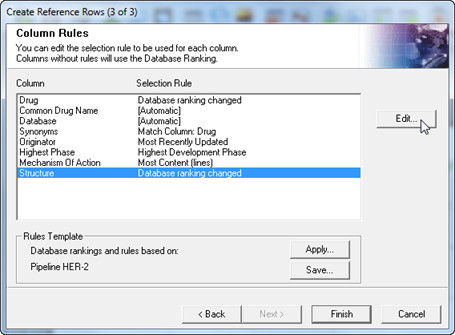
You can also change the Column Rules using the Reference Rows | Column Rules command.
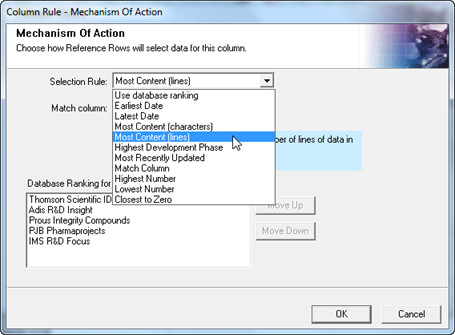
Use the drop-down menu to select a rule for each column.
- Use Database Ranking: allows you to specify an alternative database ranking for the selected column at the bottom of the panel.
- Earliest Date; Latest Date: applies to columns with dates only.
- Most Content (characters or lines)
- Highest Development Phase: applies only to drug phase columns.
- Most Recently Updated: selects the cell from the record which was most recently updated (not the most recently updated cell.)
- Match Column: specify that this column will be populated from the same record as the column selected in the drop-down column menu below.
- Highest Number, Lowest Number, Closest to Zero: applies only to columns with numeric values.
A cell with content will always be chosen over an empty cell. The database ranking is used to resolve a tie if multiple cells are selected by a rule.
Reference Rows Review Chart
The Reference Rows review chart (see below) lets you preview and customize your exported Reference Rows report. The row numbering (e.g., 1.1, 1.2, 1.3.) reflects each Reference Row group.
Green check marks show which cells were selected by the database ranking and column rules to appear in the exported report.
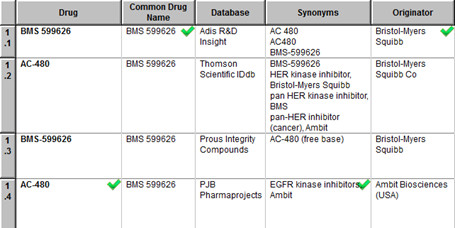
To override the rules, select the cell you prefer, hold down the right mouse button, and choose "Select this cell" from the menu. A purple check mark will indicate a manually selected cell. To undo the selection, select the cell again.
Saving your Reference Rows Review Chart
You can save the review chart as a .chrr file and re-open it in Reference Rows with all of your rules, edits, and selections saved.
You can also open the .chrr file in Version 3.4 (releases dated 12/21/2011 or later.) The rows will be in the sorted order but no Reference Rows features will be available or saved.
Exporting your Reference Rows report
You can view and distribute your Reference Rows reports via one of the export formats. In Version 1.0, you can export to HTML, Word, and the XML Smart Data Exchange Format. The HTML can be opened in Adobe Acrobat.
- Press the Export icon on the toolbar or use File | Export to create your Reference Rows report.
- Choose your export format and click OK.
- Select your export options. You can include all of the records, only the first source record for each row, or none of the records. You can also turn off links to Publisher Records on this panel.
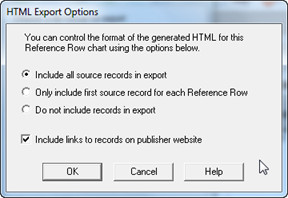
- Provide a file name and your exported file will open in the selected application. Click here for sample exported HTML reports.
Features of Reference Rows HTML/Word Reports:
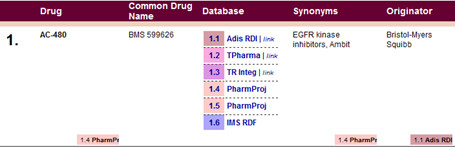
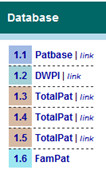 Each set of related records will be shown as a single row with the selected (checked) cells displayed.
 - A colored box at the bottom of each cell indicates the source database and record. The database attribution can be edited using the Properties button on the Database Ranking panel.
- If you chose to include records, they are linked in the Database column from the database attribution for each records. You can retrieve the record on the publisher website from the word "link" in the Database column.
Reference Rows Rules Templates
Rules Templates allow you to save your database ranking and column rules so that you can quickly apply them to a new Reference Rows report.
Saving a Rules Template:
- You can save a Rules Template in step 3 of the Create Reference Rows wizard, using the Save... button at the bottom of the panel.
- Or, after you have created the review chart, select the menu option Reference Rows | Save Rules Template.
- On the Save Reference Rows Rules Template panel, type the name of your template.
Applying a Rules Template:
- You can apply a Rules Template in step 2 or 3 of the Create Reference Rows wizard, using the Apply... button at the bottom of the panel.
- Or, after you have created the review chart, select the menu option Reference Rows | Apply Rules Template.
Show Rules Directory:
Rules templates are saved as .DRUG (drug pipeline), .TRIAL (clinical trials) or .PATS (patents) files in the "rules" directory in your roaming profile. You can share these rules template files with other users.
- To view your rules templates and to quickly find where your rules templates are located on your PC, select the menu option Reference Rows | View Rules Directory.


